
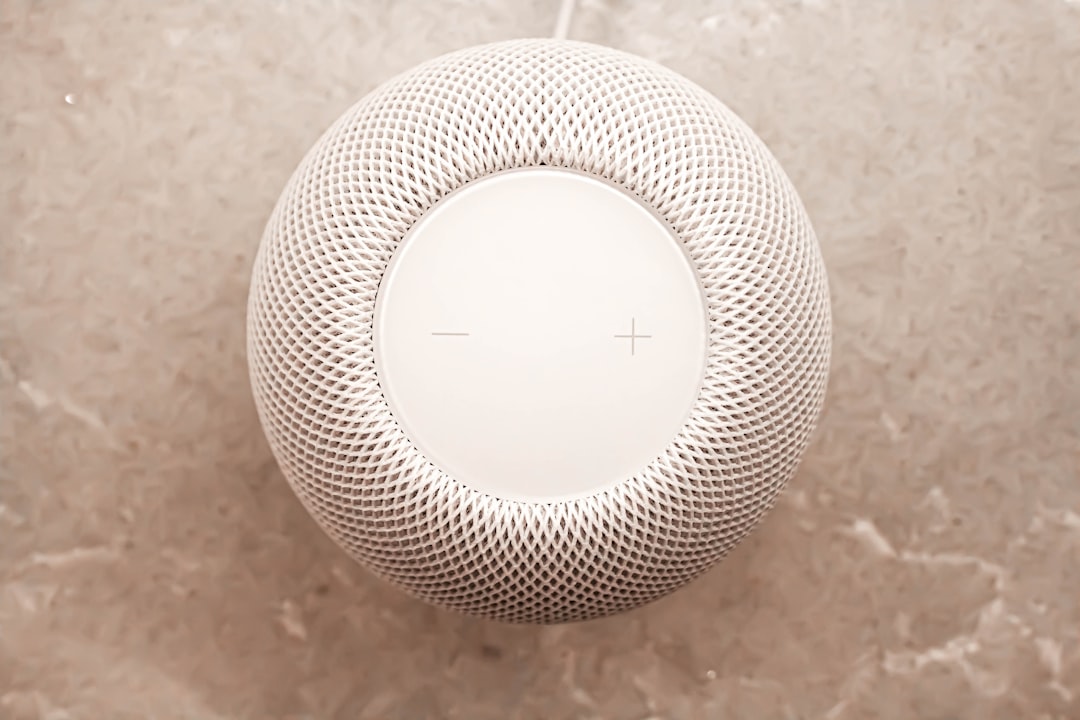
Learn how to properly reset smart home devices, avoid common mistakes, and get your gadgets working like new again with this practical step-by-step guide.
Smart home devices make daily life more convenient, but they can also run into glitches, connectivity issues, or performance slowdowns over time. Knowing how to reset them properly can save you time, money, and a lot of frustration. Whether you are dealing with a stubborn smart thermostat, an unresponsive smart speaker, or a Wi-Fi connected camera that keeps dropping offline, a proper reset is often the fastest fix available.
Understanding the Difference Between a Soft Reset and a Factory Reset
Before you press any buttons, it is important to understand that not all resets are the same. Choosing the wrong type can erase settings you spent time configuring, so knowing which one to use matters.
Soft Reset
A soft reset is simply restarting the device without erasing any stored data or settings. This is the first step you should always try. For most smart home devices, you can do this by unplugging the device from power, waiting about 30 seconds, and plugging it back in. This clears temporary memory and resolves minor software hiccups without undoing your preferences or Wi-Fi credentials.
Factory Reset
A factory reset wipes the device completely and restores it to its original out-of-the-box state. Use this option when a soft reset does not solve the problem, when you are selling or giving away the device, or when you want to start fresh with a new network setup. Keep in mind that after a factory reset, you will need to re-add the device to your smart home app and reconfigure all your settings from scratch.
How to Reset Common Smart Home Devices
Each type of device has its own reset process. Following the correct steps for your specific gadget prevents accidental data loss and ensures the reset actually works.
Smart Speakers and Displays
For devices like Amazon Echo or Google Nest Hub, a factory reset usually involves holding a physical button on the device for about 15 to 20 seconds until you hear a confirmation sound or see a visual indicator. Always check your device's manual or the manufacturer's website for the exact button location, since it varies by model. After the reset, open the companion app on your smartphone to set it up again.
Smart Thermostats
Smart thermostats like Ecobee or Nest require you to navigate through the on-screen menu to find the reset option. Go into the device settings, look for a menu labeled Reset or Factory Reset, and confirm your choice. Some models have a reset pinhole on the side that requires a paperclip. After resetting, you will need to re-enter your Wi-Fi network details and reconfigure your heating and cooling schedules.
Smart Plugs and Light Bulbs
These smaller devices typically reset by toggling power in a specific pattern. For example, many smart bulbs reset by turning the switch on and off rapidly five to ten times in a row. Smart plugs often have a small reset button you hold down for a few seconds. Once the light flashes or the plug beeps, the device is back to factory settings and ready to be added to your app again.
Smart Hubs and Routers
For central smart home hubs like Samsung SmartThings or a smart Wi-Fi router, use extreme caution before performing a factory reset. These devices often control dozens of connected gadgets, and resetting them will disconnect everything at once. Always back up your configuration through the app first if that option is available. Then use the reset button on the device, typically held for 10 seconds, and rebuild your network from the ground up.
Tips to Avoid Problems After Resetting
Once your device is reset, take a few extra steps to prevent the same issue from coming back. Make sure


