
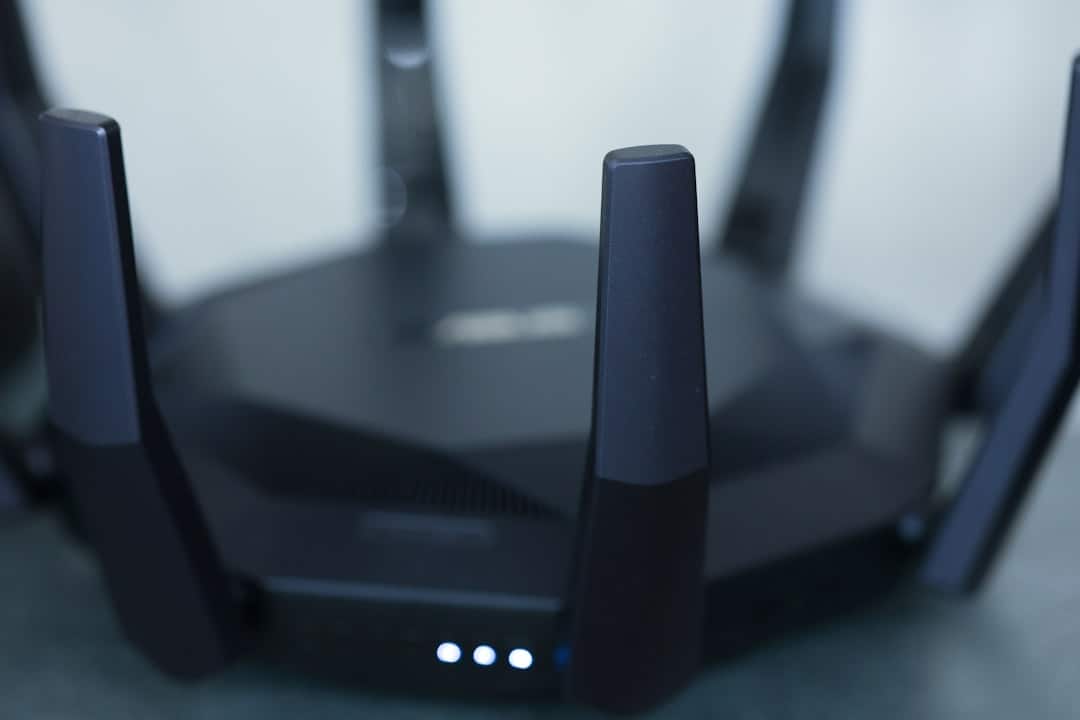
Tired of buffering and lag? Learn practical steps to fix slow internet at home fast, without waiting for a technician.
Slow internet at home can bring everything to a halt, whether you are working from home, streaming your favorite show, or just browsing the web. Before you call your internet provider or pay for a tech visit, there are several things you can do yourself to speed things up. Most of the fixes are simple, free, and take only a few minutes.
Why Your Internet Slows Down in the First Place
Understanding what causes slow internet helps you target the right problem. Home internet speeds drop for a variety of reasons. Your router might be outdated or placed in a poor location. Too many devices could be sharing the connection at once. Your internet service provider might be experiencing congestion during peak hours. Or your plan might simply not be fast enough for what your household needs.
Before jumping to solutions, it helps to run a quick speed test. Visit a free site like Speedtest.net and check your download and upload speeds. Compare those numbers to what your plan promises. If the numbers match your plan but things still feel slow, the issue is likely inside your home network. If the numbers are much lower than expected, the problem might be with your provider or your equipment.
Start With a Simple Restart
It sounds almost too basic, but restarting your router and modem fixes slow internet more often than people expect. These devices run continuously and can develop memory overload, connection errors, or software glitches over time.
Unplug your modem and router from the wall. Wait a full 60 seconds, not just a few seconds. Plug the modem back in first and let it fully connect before powering on the router. This process clears temporary errors and often restores full speed on its own. Make it a habit to restart your router at least once a month even when things seem fine.
Check Your Router Placement
Where you put your router matters more than most people realize. Walls, floors, furniture, and appliances all absorb and block wireless signals. If your router is tucked inside a cabinet, sitting in a basement, or pushed into a corner far from where you use devices most, you are losing signal strength.
Move your router to a central location in your home, ideally off the floor and away from thick walls. Keep it away from microwaves, baby monitors, and cordless phones, which can interfere with the 2.4 GHz band. Elevating it slightly, like placing it on a shelf, helps the signal spread more evenly throughout the house.
Switch to the Right Frequency Band
Most modern routers broadcast on two bands: 2.4 GHz and 5 GHz. The 2.4 GHz band travels farther but carries less speed. The 5 GHz band is faster but works best at shorter distances. If you are sitting close to your router and still experiencing slow speeds, try connecting your device to the 5 GHz network specifically.
You can access your router settings by typing 192.168.1.1 or 192.168.0.1 into your browser. Log in with your router credentials, often printed on a label underneath the device, and look for wireless settings to adjust band preferences or separate the two networks.
Reduce the Number of Connected Devices
Every device connected to your network shares the available bandwidth. Smart TVs, gaming consoles, phones, tablets, smart home devices, and laptops all pull from the same pool. If multiple people are streaming video or gaming at the same time, speeds will drop for everyone.
Check your router's connected device list through its settings page. Disconnect devices you are not actively using. You can also set up Quality of Service, or QoS, settings in your router to prioritize traffic for specific activities like video calls or streaming. This feature is available on most mid-range and newer routers.
Update Your Router Firmware
Routers receive firmware updates that fix bugs, patch security issues, and sometimes improve performance. Many homeowners never update their router and miss out on improvements that could speed things up.
Log into your router's settings and look for a firmware or software update option. The location varies by brand, but it is usually under an Advanced or Administration menu. Some routers update automatically, but many require a manual check. If your router is more than five years old, even updated firmware may not be enough. Consider replacing it with a


